Linux Quick Guide
You can use command line to do many things efficiently. For example, assemble your frames into a video using ffmpeg via command line — see the ffmpeg section.
To start an IDE:
- Visual Studio Code (NOT Visual Studios) can we launched by typing
codeon both Linux and Windows. - Sublime is
sublon Linux (Rocky) andsublime_text.exeon Windows.
A directory is just a folder (cd means change directory - it is like clicking on a folder but you give it a path)
/opt is where you will find things like /opt/hfs22.0/bin (think C drive on Windows)
/run/media is where you will find your hard drive you plugged in (on Mac it is VOLUMES)
As you use linux more you will find it to be lightweight and efficient. During presentations on linux there are a handful of things that will quickly become familiar.
lslists your filescdchange directory - you specify the path you want to go to
Quick tips:
- NOTEUse
evinceon Linux to open a PDF via command line - NOTEUse
eogon Linux to open an image file via command line (Eye Of Gnome) - NOTEUse
unzipon Linux to extract files from dropbox.com - NOTEUse
gnome-screenshot -ato capture a selected area (analogous to Windows Snipping Tool)
If you are not on Linux you can use a cmd window on Windows to use command line
doskey to map commands — e.g. doskey ls = dir
cmd window or Powershell for a more Linux-like experience — e.g. echo %Path% > test.txt instead of printenv (See MS-DOSHelpSheet for more details.)
| Linux Quick Guide |
to most commonly used commands |
cmd on Windows |
| ls |
lists the contents of the directory (folders are blue, files are black font) MS-Dos uses dir - on a whim, I tried this on linux and it works too! |
dir |
| cd |
change directory ie. cd ../ will go up a level or you may want to do to your home directory cd ~ or cd |
cd |
| ~ |
home directory |
|
| cp |
copy and if it is an entire directory, cp -r (copy on msdos with no arguments) |
copy |
| cp -r |
entire directory | copy |
| copy on MS-Dos with no arguments will copy folders intact xcopy src dest /s will copy all but not the top level (not very useful) |
||
| rm |
removes / deletes a file rm -r deletes an entire directory |
del |
| pwd |
present working directory (where you are) |
echo %cd% |
| . |
current directory |
|
| ./ |
current directory |
|
| ps |
processor status (ie. what jobs are running) |
|
| kill -9 jobid |
kill the job with this id from ps no matter what kill -segv will force it to save a version to /tmp |
|
| pkill houdini |
kills any running houdini process matching that name |
|
| mkdir |
make a directory (new folder) |
mkdir |
| cd /opt |
installations of Houdini can be found here |
cd C:/Program Files |
| & |
run an application as a background process gedit & this will leave the terminal window free to use |
notepad++.exe & |
| keyboard up arrow |
recalls the last command to save typing or ... |
|
| history |
history lists recent commands and you can type !# where # is the number from the list |
doskey /history F7 |
| and less common but useful commands |
||
| printenv |
prints your paths and environment settings |
echo %Path% |
| more |
pipes a file to terminal display |
more |
| eog |
default image file viewer on linux (Eye of Gnome) |
|
| gnome-tweaks |
GNOME Tweaks tool — use to enable minimize/maximize buttons on windows |
|
| gnome-screenshot -a |
capture a selected area of the screen (analogous to Windows Snipping Tool) |
|
| evince |
evince file.pdf allow you to view a pdf file via command line |
|
| unzip |
uncompress a zip file |
|
| whereis |
find where an application is located (and on Windows) where /r C:\ mplay.exe | where |
| On a mac use which |
You can redirect command output into a file using >. For example:
That creates test.txt and puts the output into it. More usefully, try:
But the file will be empty. Why? Because --help writes to Standard Error (stderr), not Standard Output (stdout). Fix it with:
The 2>&1 redirects stderr into stdout so both end up in the file. This works on MSDOS too — tested using the hcmd "command line tools" window from SideFX Launcher (a regular cmd window with Houdini env pre-loaded).
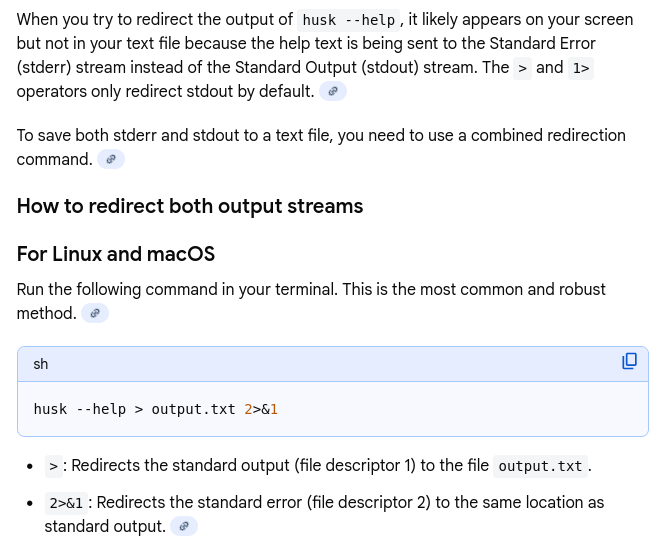
See also mix-fix
- To change the terminal window size in Geany, set the terminal preference to:
xterm -fa "Mono:size=36" -e "/bin/sh %c" - On Rocky Linux no change is needed — on CentOS,
xtermbecomesgnome-terminal
You can create a .bashrc script (formerly .custom_bash) that runs automatically when you log in. The first line identifies it as a bash script:
No file extension required — /bin/bash is the interpreter location (use /bin/sh for Bourne shell). See this site for simple bash script examples.
At minimum, strongly recommended to add:
This makes rm ask before deleting. Use alias -h to see all alias options.
To run a script: type ./scriptname in a terminal, or double-click it in Nautilus. You must be in the same directory or it will fail.
lifewire.com has useful Linux summaries, particularly for beginners.