USD and Houdini — Overview
Introduction
Also on YouTube.
See also: command line rendering in Karma.
Example file to create sequences of USD files (for example, from simulation) using a USD clip node. (Thanks Davis for the tip.)
Now that we are in 20.5, USD is the underlying file format that is gaining popularity. With Houdini 18 came the introduction of USD — Universal Scene Description, developed by Pixar.
Bringing Data into Solaris
Summary of various common ways to bring data into Solaris (stage or lopnet) — see CoinCopyH20.5New.hipnc
- sceneimportall — everything. Be careful to use best practices for assigning materials as seen in the Karma and Houdini section.
- sopimport — geometry only; no materials, cameras, or lights.
- file reference — usually used with a SOP-exported USD file.
-
geo sequence clip as specified by Pixel Ninja (using
bgeo.sc): https://vimeo.com/1063764617 - geo sequence clip as specified by Davis Hardy (using separate USD files) — see the "file to create sequences of USD files" example above.
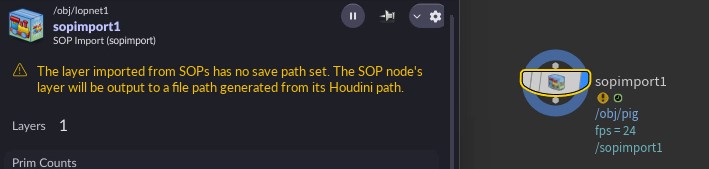
SOP Import note for 20.5
One change in 20.5 to the SOP import node from previous versions is that it now issues
a warning if you have not specified an output path. Easy to click and add a save path:
$HIP/geo/yourfile.usd
Solaris, Karma & LOPs
Introducing USD also means introducing a few related tools:
Solaris
Houdini's tool for creating and editing USD. A network context called LOPs for creating layout, lighting, and rendering.
Karma
See also: Houdini and Karma. The Viewport becomes your render view (Hydra-based IPR), and you use a Karma LOP node with "save to disk" to render your scene inside a LOP network context (using USD). CPU and XPU options are available in Karma, and it will replace Mantra.
- You must create your render folder before rendering.
- Variance threshold limits the samples; pixel samples is the max. Type D to change the preview settings.
LOPs
To set up your scene in USD format for use with Karma, you will use a LOPs network. It is a way to organize your entire scene.

- To move your camera: lock and move.
- Once geometry is in LOPs, it is referred to as a "prim" or primitive — not the same as a Houdini primitive.
- To view your USD: use a network panel USD / Scene Graph Tree. The Scene Graph Tree gives a tree view of your USD scene, editable best via stage manager (not the same as a SOP network tree view).
- In LOPs: right-click on a LOP node → LOP Actions → Inspect Active Layer.
- You can also view a LOP node by: RMB → LOP Actions → Inspect → Flattened Stage.
Recommended Documentation, Tutorials & Files
-
Highly recommend Matt Estella's pages:
- LOPs Lighting Quickstart
-
USD Guide — Table of Contents
- Goes over USD export/import at the SOP level.
- LOPS IS NOT HOUDINI, LOPS IS USD — LOPs bring Houdini to USD.
- Scene Graph Tree is more like a geometry spreadsheet — use a stage manager to edit.
- "Single vertical chain is better" — UsdGuide04
- Highly recommend Pixel Ninja's LOPs for Solo Artists
-
CG Forge — Karma & LOPs:
Part I
- Small note: rather than merge, you could just add the nodes in sequence.
- CG Forge — Karma & LOPs Part II (lightmixer, light linking, render settings): Part II
- SIGGRAPH Asia 2019 presentation by Luke Gravett — Animal Logic using Solaris/USD (posted Dec 3, 2019)
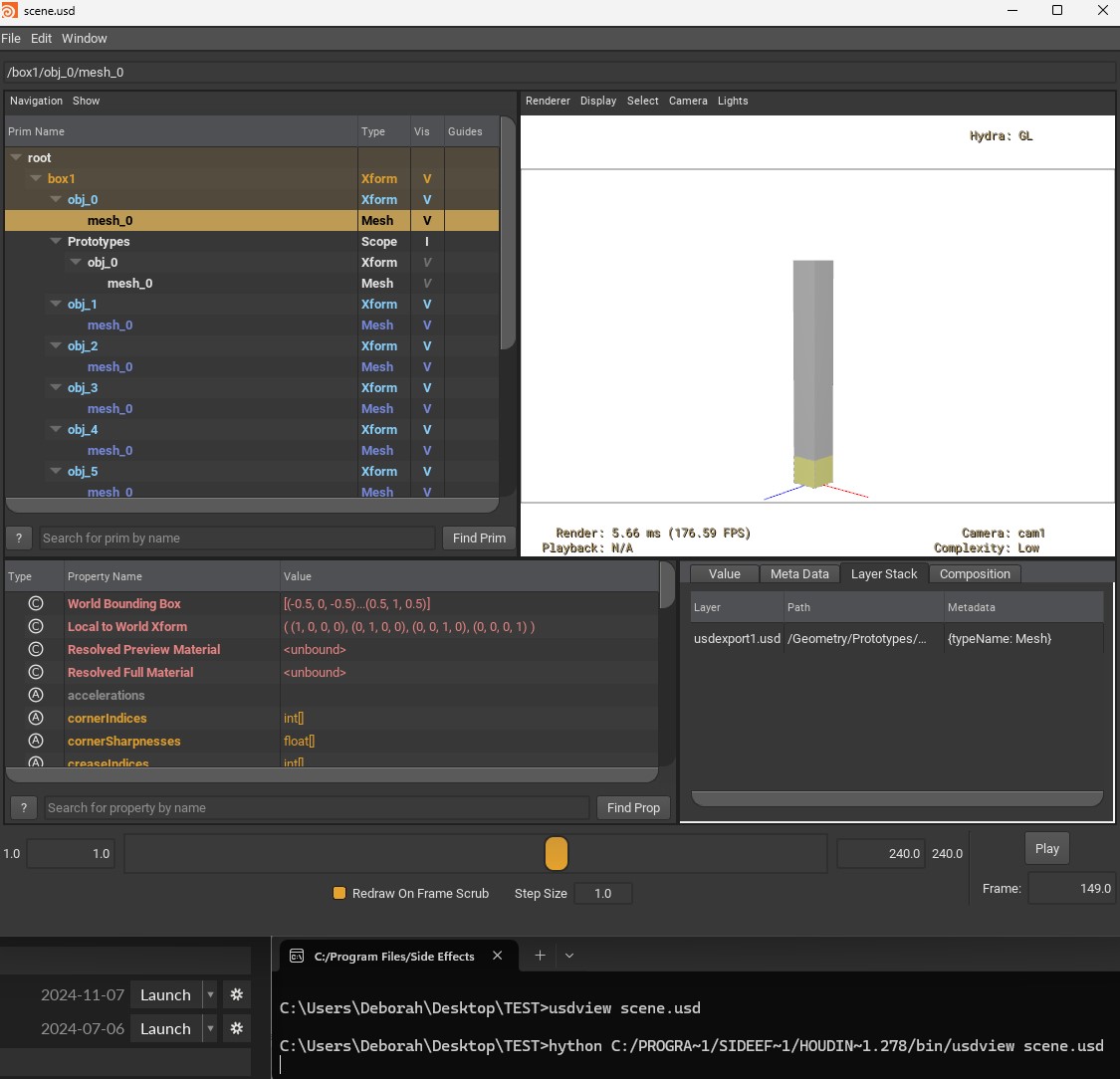
usdview
usdview (external) can be run from the command line to bring up and inspect your scene.
USD Format
USD — no, not US dollar, but "Universal Scene Description", developed by Pixar. It is a toolset for reading, writing, editing, and previewing 3D data. It is "stackable" in non-destructive layers. Hydra is an API for generating an image from a USD scene. USD consists of C++ libraries with Python bindings for scripting.
-
Pixar documentation
-
Note Ignore the Pixar USD documentation section A-Tour-of-USD-Houdini-Primitives.html — at the time of this posting this section is out of date.
- usdview will show you the contents of a USD file. You can run the command from the command line rendering tool (from the Houdini launcher).
-
- Houdini USD implementation
-
You can create an ASCII-readable version from your USD ROP by adding an
ato the extension — i.e.,.usda -
To convert USD files from binary to ASCII, use
usdcat-
From the Houdini Command Line Tools 18.0.287:
(NOTE:usdcat file.usd --out file.usd --usdFormat usda--is a double dash) .usdais the extension for ASCII;.usdcis binary.- Example files of writing, converting, and reading USD
- You can also view a LOP node by: RMB → LOP Actions → Inspect → Flattened Stage
- Command line rendering
-
From the Houdini Command Line Tools 18.0.287:
- VEX and USD documentation
Advantages
- Universal / standardization — able to use files across software.
- USD assets have a "Purpose" — makes it easier to use proxy geometry.
- Instancing can be used inside LOPs using
addpointinstance. - Override elements of assets using point attributes (like style spreadsheets, but better).
Overview & Terminology
Understanding USD will help you understand Solaris, but the details are handled by the LOPs nodes.
USD has been used by Pixar and is now open source, with the intention of providing a common file format. It consists of layers — sometimes an analogy to Photoshop layers is used. In Houdini there is a prune node that "hides" layers. Working in "stage" in Houdini is the resulting composition of your layers. Stage is a USD term for composing layers.
- Layers — allow artists in different departments to work on the same entity; great for collaboration. Provide non-destructive editing.
- Variants — allow assets to package up similar but varied versions in one, so they can be easily selected. There is also a concept of inheritance.
When composing layers, opinions are considered, so a property will be overridden if the layer has a stronger opinion.
Layers contain Prims (not like a Houdini prim, but a USD concept). Prims and their contents are organized into a layer.
USD allows differing departments (modeling, shading, animation, lighting, FX, rendering) to have their own format while still being readable and interchangeable.
In Houdini, regarding writing USD files: remember that USD stores data, not nodes
(like a JPG versus a PSD file, or like a bgeo.sc).
Assets also have the concept of purpose — render or proxy.
Hydra is the API that talks to USD.
- Physics: The physics option in LOPs really has a DOP running in the background, so practice good complex scene practices when using it. On the Edit LOP: right-click and select "Use Physics."
- Stage muting: Stage allows you to mute in the viewer — again, good complex scene practices apply.
Glossary of Common USD Terms
There are more terms than listed here.
.usd file is a layer (usdc or usda), but a usdz file can contain multiple layers in one file.
Common Nodes in Houdini Related to USD / Solaris
Example Files
In the documentation noted above,
there is a "quick example." However, I was not able to use the two_boxes part of it verbatim
(perhaps there is a way; however I found a solution that works). Here is what works with
.usda files and .hipnc supplied below.
box.usda works great! Here are my versions:
#usda 1.0
def Cube "box"
{
    double size = 0.5
}
This def defines a new prim called box. The "attributes" (now called properties)
are defined in the curly braces. Coming from a C++ background, I tend to match my curly braces
with each on its own line (personal preference).
The two-box example as listed in the docs (as of this posting) I could not get to read in properly. The syntax I used was:
#usda 1.0
def "box1" ( references = @./box.usda@</box> )
{

}
def "box2" ( references = @./box.usda@</box> )
{
    double size = 5.0
}
Click here for a zip file of the usda files and hip bringing them in.
This defines the two boxes by referencing the other .usda file where box
is defined as a primitive. If you look at the hip file provided with the usda files, you will see
this can be imported into Solaris with a file node, or alternatively into the Obj/geo context with
a USD import node. Both render perfectly in Karma (ignore the odd-looking corners in the Vulkan viewport).
This is a good start to understanding the layering of the USD file format. We will delve deeper
as we talk about command line rendering. Note that you are more likely to be using .usd
(or .usdc) rather than the ASCII-readable file, as binary will be smaller. In addition,
you will be generating the USD source from the interface with a USD ROP, rather than these files
that were created in Notepad++.
A Few Key Points: SOPs vs LOPs
- You can work in a lopnetwork or in Solaris.
- Scene Graph Tree allows manipulation — it is not like the "Tree View" of a SOP network (Shift+W in network view).
- SOPs modify geometry; LOPs modify hierarchy and objects.
- Chaining sopimports together consecutively in LOPs appends results. SOP chains are about geometry modification — in
/obj, parents. - In LOPs, defaults are set up to help organize — all lights under a light tab, cameras, materials, etc.
- Walking the node network in both is convenient.
-
Write out your files using a USD ROP (same as you will for the render farm), then use a topnet
in
/objwith a filepattern and usdrender (Shift+V to start).- Note: if you attempt to use husk on this file, it will not automatically create the render folder — but the topnet will.
husk -f 1 -n 24 nameOfFile.usd- (Note: it works fine, but at the time of this posting I am still investigating resolving the token
productName.timeSampleswith absolute paths.) - The above is equivalent to the topnet node from the Houdini "command line tools" (access from launcher).
- The Karma node in the regular
/outcontext is actually a USD ROP with a lopnetwork. - You can work in SOPs and have a LOP network, or you can work in LOPs (Solaris) and use a sopcreate — which really is a SOP network.