Command Line Rendering in Houdini with Karma
Also on YouTube
Example commands (use in the Houdini Command Tools "terminal" window or on Linux, a terminal — both should have the Houdini environment installed)
If you want to use husk to test a frame you can also make it lower res on command line with the -r flag
NOTE: when rendering from command line, if the render folder does not exist you will need to either make one, or use the flag below (rendering from the GUI will automatically create the folder)
You can also add the flag to your command line for example (note for Linux, add ticks to '$F4'):
- --make-output-path will force it to create the folder (directory) if it does not exist
- -o redirects the output, in this case to the render folder and labels them test.0001.exr, test.0002.exr etc.
- --engine xpu specifies the engine you want to use, options cpu or xpu
- -f start frame
- -n how many frames — leave this off and you will get a single frame (see note below about troubleshooting sequences)
- -r 320 180 is the frame resolution
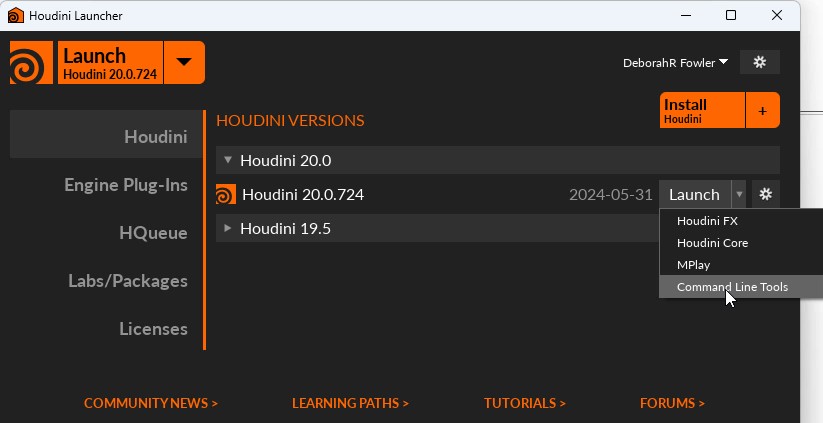
Easiest way to get a terminal window with the Houdini environment set up is to use the Houdini Launcher and under Launch select Command Line Tools (This is just a shortcut to the hcmd command in the Houdini bin)
The method we will use differs from the one used for Redshift and Mantra. We were able to use the hipnc directly. Now with command line you will be using a usd file. For those of you familiar with other rendering engines, this would be similar to Renderman: prman file.rib or Arnold: kick file.ass or for that matter if we had written ifd files with Mantra. One of the reasons for moving to Karma was to use USD file format and introduce the USD environment.
USD (Universal Scene Description, developed by Pixar) is a toolset for reading, writing, editing and previewing 3D data. It is "stackable" in non-destructive layers (think Photoshop).
Hydra is an API for generating an image from a USD scene. USD consists of C++ libraries with Python bindings for scripting.
For more see: Houdini and USD
In a LOP network (Solaris or sop/lopnet1) tab and select karma. You'll see a karmarendersettings node and a usdrender_rop1. The usdrender_rop renders from the GUI.
For command line you need a usd_rop to write your USD file. Your geometry must also be written out to avoid specific path references.
The example files above have been tested on the renderfarm as well for 19.5.640 — once the image is in place and the version of 20 is determined those will be tested as well. Both versions have been tested locally on my desktop).
- command line rendering works on your usd scene file. With the above example file do the following:
- run Command Line Tools and cd to the directory where your usd file is located
- husk scene.usd (in Houdini Indie, if on apprentice it will tag it with usdnc)
- (husk or husk.exe -f 3 scene.usd would render frame 3 for example, type husk to see all flags)
- this command will produce your render in exr format — in the example file I have set it to not go to a folder since karma will not automatically create a render folder
In the example files I also included a usda file to look at to aid understanding.
- if you are using a usd file (will not work on usdnc files) you can examine the ascii version of your file by converting it using:
- usdcat file.usd --out file.usda
- usdcat -o file.usda file.usd
In Linux, the instructions are the same, however the regular terminal window is already ready for you.
I recommend testing your usd files before sending to the farm with a single frame render. If you wanted to render a sequence locally you can but beware that the behavior of animated time samples may not be as you might expect. A quick local workaround is to run the following script to force single frame renders.
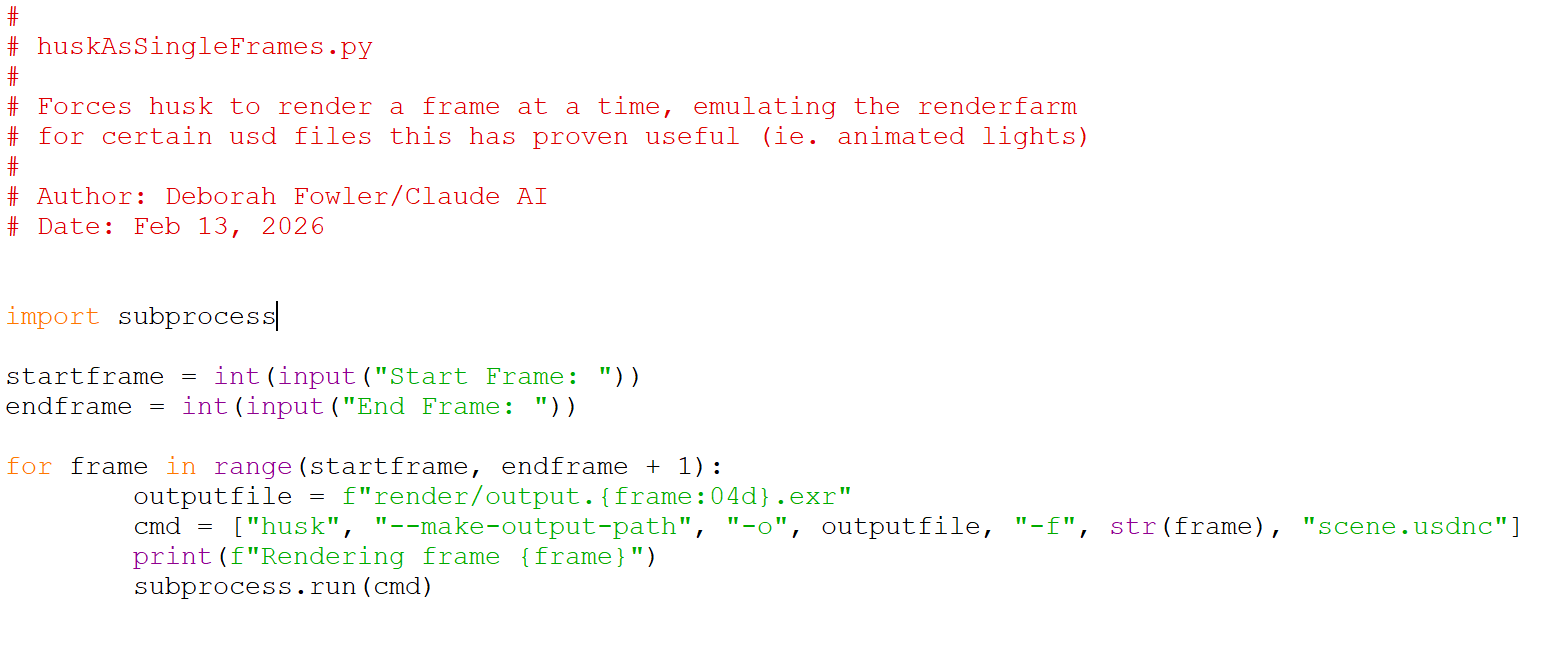
Copy this python file into your folder (replace the name with your scene file) and from the command line type:
If using an animated texture or light you may need to change your usd (see animated texture) or if single frames are working you can use subprocess to run husk as single frames.
There is a longer explanation of usd from command line from Gridmarkets:
https://support.gridmarkets.com/portal/en/kb/articles/houdini-lops-submitter-properly-exporting-usd-files-rendering-caches-pipeline-v2